Touch / Touch XL: Guide to Enhancing Exercise Experience


Exercisers want more than just a workout; they want engaging experiences. This tutorial walks you through how to transform everyday cardio sessions into immersive, motivating journeys using interactive programs, customizable console features and wearable or other device integration. From Matrix proprietary training programs like high-intensity Sprint 8 to globally-inspired workouts with Virtual Active and Landmarks, you’ll learn how to keep members engaged, challenged and coming back for more.
The guide also covers practical setup tips, including changing featured workouts, adding custom apps, and how to help your exercisers enhance their experience, including pairing personal devices and saving workout data for long-term progress tracking.
Whether you’re enhancing motivation, personalization or performance, this tutorial shows how to get the most out of Touch / Touch XL Console interactive fitness technology.
SHOWCASE INTERACTIVE WORKOUTS
Interactive workouts make cardio sessions more engaging and fun, which helps boost motivation and consistency. By incorporating challenging programs or even virtual environments, you make every workout a fresh and unique experience.
SPRINT 8
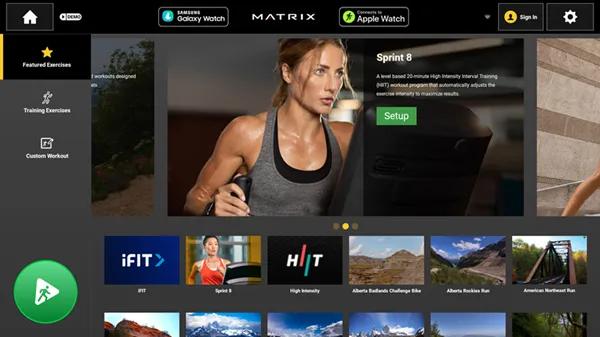
Introduce your members to our exclusive Sprint 8 program, developed specifically to give them results that keep them coming back. Sprint 8 is a scientifically validated program that uses high-intensity exercise to stimulate natural human growth hormone, efficiently burning fat and building muscle.
IFIT
Your members will be able to access an extensive range of immersive, interactive workouts, plus high-energy Live Workouts that are available every day. Exciting iFIT programming on the consoles will make users feel like they’re taking part in a studio class on their own schedule.
VIRTUAL ACTIVE
Transport exercise enthusiasts to exotic locales all over the world. The beautiful forward motion, high-definition footage speeds up or slows down to match the user’s pace, and resistance or incline varies to match the terrain. Users can select a Guided Workout for instruction and encouragement for a more effective exercise experience. When it comes to the most immersive workout available, nothing can take your members on a journey like Virtual Active.
LANDMARKS
Add challenge, motivation and interest to ClimbMill workouts with more than 20 globe-spanning, exhilarating journeys to the top of natural and man- made wonders of the world. Each destination includes stunning photography and quick-read information that can help members broaden their worldly knowledge every time they load the program.
HIIT
Deliver a performance-driven experience in group class setting or for individual exercisers with a fully customizable interval training program for high intensity workouts. Users can set three quick-access intensity levels, allowing for rapid adjustments of speed and incline throughout sessions. Creating a custom HIIT workout is intuitive for both staff and members. Workouts can also be saved for consistent use across programs or classes.
CHANGE DEFAULT DISPLAYED WORKOUT
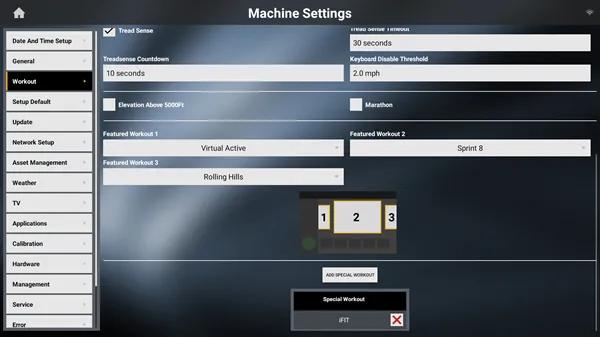
- Press and hold the Matrix (or custom) logo for five seconds to display the Product Dashboard.
- Press the “Engineering Mode” button.
- Enter “3001” on the keypad to access the Machine Settings menu.
- Touch ‘Workout’ on the left navigation menu.
- Scroll to the bottom of the page and select an available workout from the dropdown list.
- Do this for Featured Workout 1, Featured Workout 2, and/or Featured Workout 3.
- There is an illustration that shows the display position of Featured Workout 1 (left), Featured Workout 2 (center) and Featured Workout 3 (right).
Note: Only available workouts will be in the dropdown list.
ADD A CUSTOM APP
Create a custom web app to provide exercisers with a shortcut to any website that they can access directly on the console. You can customize the app icon and name, streamlining their experience as it looks like any other app available to them.
FIRST, ON A USB
- On the root folder of a blank USB, create a new folder named custom_app. The USB needs to be a version 2.0 with FAT32 file system formatting.
- Create an app icon (what users will touch to open the custom app). It should be a square, 512 x 512 pixel .png or .jpg image.
- Place the app icon image in the custom_app folder.
NEXT, ON THE CONSOLE
- Insert the USB in the port on the console.
- Press and hold the Matrix (or custom) logo for five seconds to display the Product Dashboard.
- Touch ‘Machine Settings’ and enter ‘3001’ to access ‘Service Mode.’
- Touch the ‘Asset Management’ button on the left navigation menu.
- Scroll to the bottom and enter the app name in the ‘Custom App Name’ field.
- Type the URL in the ‘Custom App URL’ field.
- Press ‘Upload Custom Icon’ to upload the app icon image.
- Touch the home icon in the upper-left corner of the screen to save.
INSTRUCTING USERS: PAIRING DEVICES
Keep exercisers fully immersed in their workout with seamless integration of music, real-time performance tracking data and personalized feedback. Matrix Touch / Touch XL Consoles allow simultaneous pairing of up to three types of personal devices, including smartphones, headphones and heart rate tracking devices.
- Log into the console, either as a guest or with your xID.
- Press the gear icon at the top right corner of the screen.
- Select the button that says Device Pairing with the gear icon.
- Choose from available devices.
- On the FTMS page, you’ll see the machine name that you’ll be able to select on your device.
- Once devices are paired, press the back arrow to return to the workout selection.
- Select the MyMedia app to play audio from paired devices.
- To unpair your devices, press the gear icon and select Bluetooth Pairing.
- Click the device and confirm unpairing.
INSTRUCTING USERS: SAVING WORKOUT DATA
Access to this information opens so many possibilities for facilities and exercisers alike. Whether it’s creating a bespoke plan for the exerciser to adjust for better results or identifying patterns and then optimizing based on data. Go beyond simply saving workout data. Using the Community 360 app, your members can access enhanced tracking, goal setting and customizable experiences.
CREATE AN XID
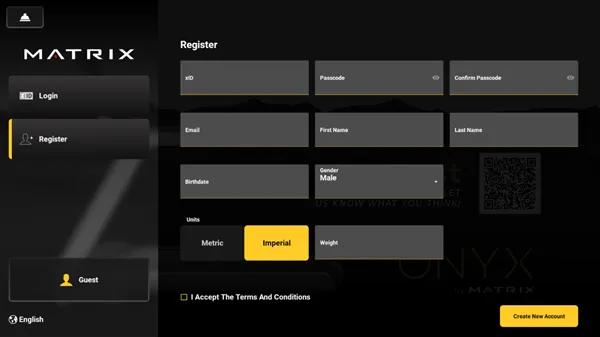
- Click the person icon in the top left corner of the console.
- Click the “Register” option and fill out the required information.
SIGN IN TO XID
- Sign in to xID during each workout to track workout stats.
- Click workout history on the console screen.
- Select which view you want to see.
- Scroll to find the day you want to review where you can see the amount of calories burned, time spent and distance traveled.